Sending files securely, straight from Outlook
Send files of any size encrypted to recipients, with password protection, expiry and an optional reply. Directly in the portal or from Outlook.
Sending files works in SecureFiles without a detour through a portal. A transfer takes files of any size, encrypts them and provides every recipient with their own download link.
Creating a transfer
In the portal under SecureFiles, click New transfer and choose the mode:
- Send to recipients: enter addresses by email, every recipient receives their own link with an individual download budget.
- Public download link: upload once, share one link, everyone with the link downloads. Suitable for press material with a hard download cap.
- Secure inbox: share a link so that others upload files. Described under inbox and receiving.
There is no size limit per file, and up to 50 files fit into one transfer. The upload runs as multipart and is retryable, so an interrupted large upload can be resumed.
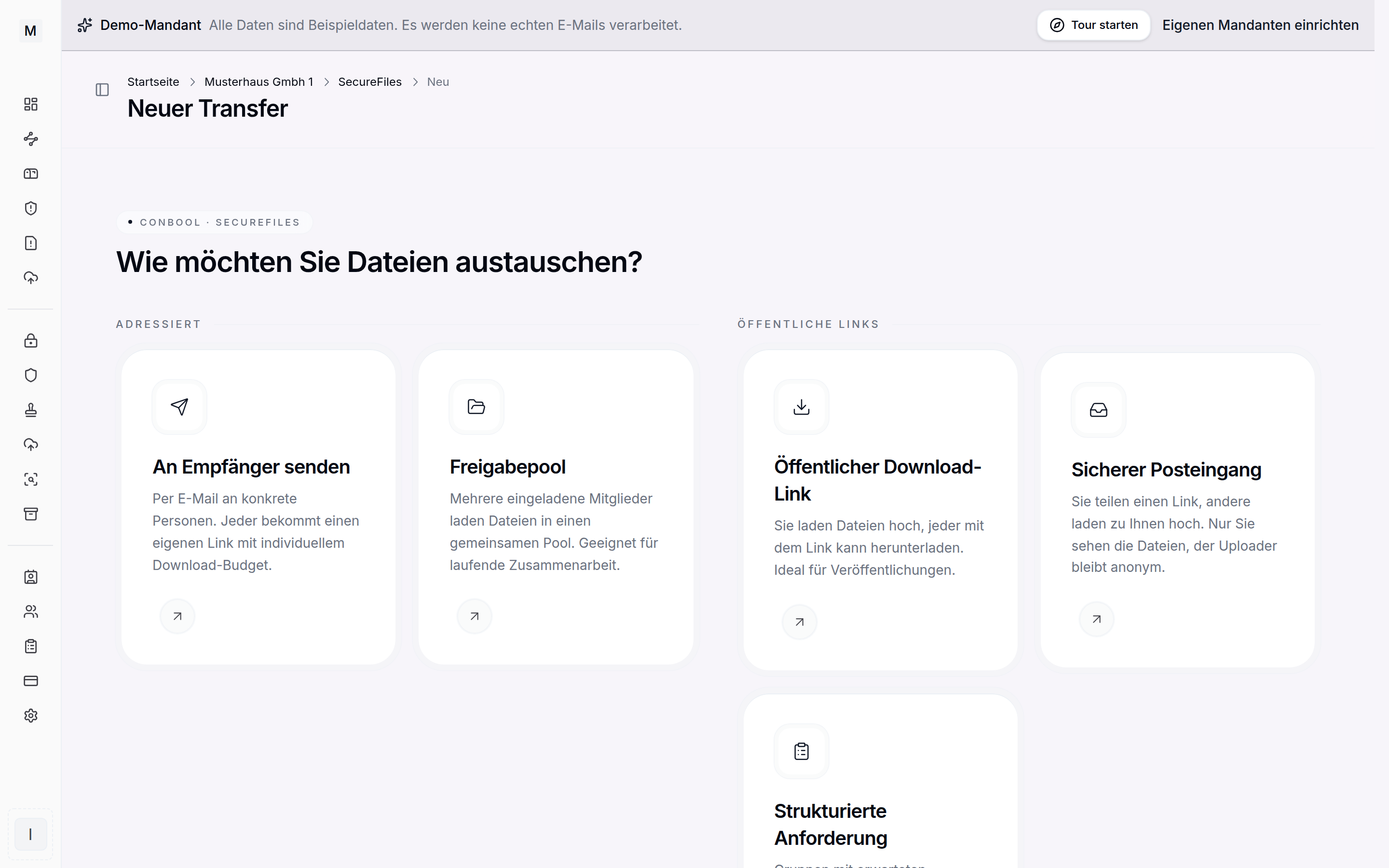 Choosing the send mode for a new transfer.
Password protection and access
For sensitive content switch on Protect with password. A generator creates a password following the applicable password policy. Share the password out of band, for instance by telephone, not in the same email as the link. Further options such as a password, verified identity and passwordless retrieval are described in recipient authentication.
Per transfer the following can additionally be set:
- Retention: after expiry the link becomes invalid and the files are deleted.
- Max. downloads per recipient or a single retrieval, as protection against redistribution.
- Allow reply upload for recipients: recipients send files back through their link, without an account of their own. The toggle appears only if the rule allows it: SecureFiles, Rules, tab "Addressed".
- Notify me on upload: notification to the sender as soon as a recipient has sent files back.
Encryption and malware scan
By default SecureFiles encrypts server side with AES-256. In zero-knowledge mode the sender's browser already encrypts, and the server sees only ciphertext. In that case the server scan does not apply.
Before every release a malware scan checks the files. Very large files above the scan limit are stored unchecked and are only retrievable after an explicit release by the sending person. The download then runs directly between recipient and storage, without an intermediate proxy.
Straight from Outlook
Large attachments can be sent without switching to the portal. The SecureFiles add-in for Outlook automatically replaces large attachments with a download link. More on the use case on the solution page sending large files from Outlook. Back to the SecureFiles overview.