Disclaimer rules and signature assignment
Disclaimer rules assign templates by sender, recipient, group, direction and language, with positioning in the thread, schedules and exceptions.
Rules decide which template applies to which message. Assignment happens through routing rules by sender, recipient, direction and language and is ordered by priority.
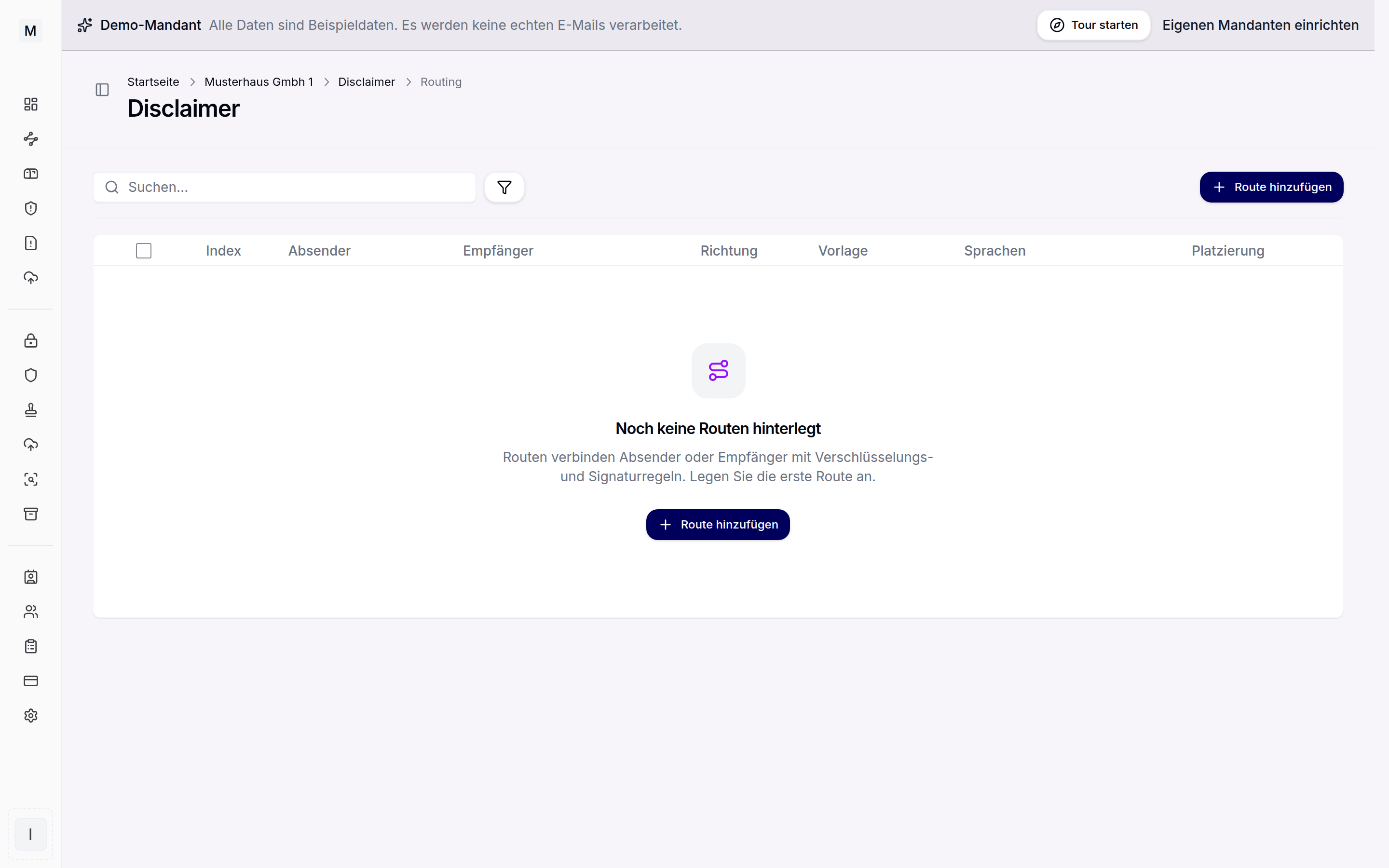
Rules assign signatures by sender and direction.
Creating a rule
- In the portal under Disclaimer, open the assignment area and choose "Add route".
- Choose the direction: outbound for sent messages, inbound for received ones.
- Set the scope, per sender and recipient: all mailboxes, a group or a single address.
- Assign the building blocks, optionally per language.
- Check the position and period per block, then save.
Assignment by user, group and business unit
The scope determines whom a rule applies to. All mailboxes of all domains of the tenant, a group or an individual address made of local part and domain are available. Through groups and domains, every business unit, every subsidiary and every site receives the fitting signature. Multilingual routes choose the template matching the language.
Building blocks of a message
A rule sets up to four building blocks at once: a banner, a signature, a campaign and a legal notice. Every block is its own template and is maintained separately. The legal notice therefore no longer has to be copied into every signature template, and a banner can be switched on and off without touching the signature.
The interface shows the structure as a message: the banner at the top, the message text below it, then signature and legal notice, separated by the quoted thread. For simple rules the view with one template is enough, the fine-grained control shows all blocks.
Positioning in the thread
The placement defines where a block appears:
- Under the last reply
- At the very bottom of the thread
- Above the message
The banner always sits at the top. Signature and legal notice can be moved freely between the two lower positions. The legal notice can thus sit directly after the signature instead of after the entire thread.
The campaign knows all three positions. It always follows the block before it: at the top it sits directly below the banner, under the last reply directly below the signature. The banner slot thereby stays free for notices such as marking external senders, while marketing maintains its own block.
Follow-up messages take over the structure of the first message by default. Alternatively the first message carries the full disclaimer and replies a compact short signature, or nothing is appended from the second message onwards. That prevents stacked notices, so-called trombone mails.
Schedules for campaigns
Rules apply permanently or only within a period. In addition every block carries its own period. A trade fair banner thereby expires on the due date, while signature and legal notice continue unchanged. A separate rule per campaign is not needed for that. For incoming messages a subject prefix such as EXTERNAL can be prepended.
Exceptions and bypass
Exceptions suppress the disclaimer in special cases. Conditions check sender, recipient, subject, body or headers for defined words and phrases. Automated invoice sending to processing systems thereby stays free of signatures.
Per-mailbox preference
In addition every mailbox chooses its preferred template in the Outlook add-in from the released templates. The choice is stored per identity. Details under add-in deployment.
Templates are created in the signature editor. Back to the category overview.