Registration and sign-in to the Conbool portal
Registration and sign-in at Conbool: create an account, confirm it and sign in to the portal. The first step before creating the first tenant.
Access to Conbool starts with a personal account. Registration and sign-in run through the same portal interface.
Registering an account
Registration takes place at /auth/sign-up with an email address and a password. After submitting, a confirmation email goes to the address given. Only the click on the link it contains completes the registration and activates the account.
Signing in
Sign-in takes place at /auth/sign-in. After a successful login the portal opens the start page at /home. From there the path leads to the first tenant.
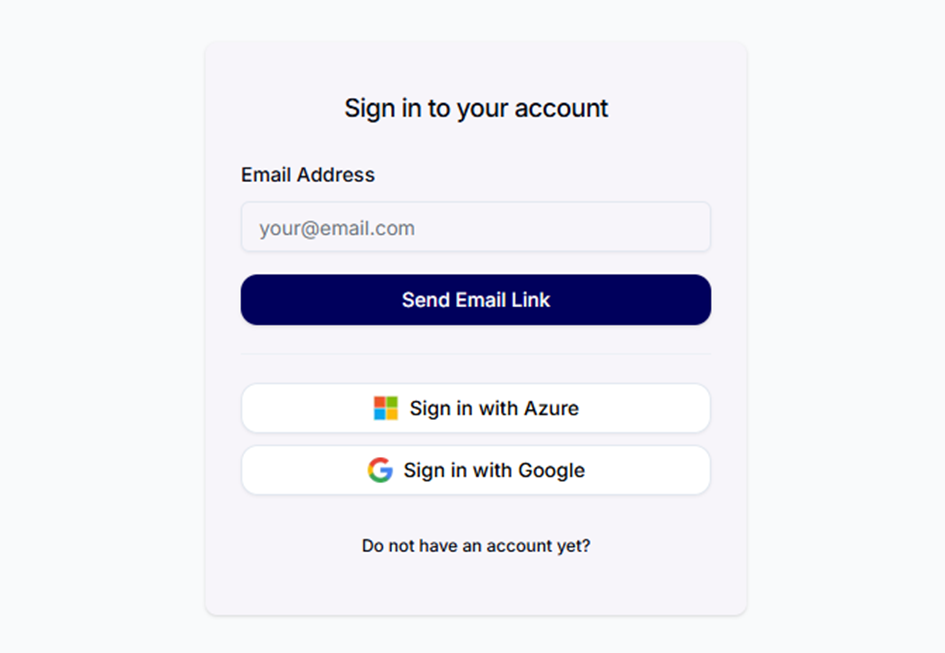 Sign-in page of the Conbool portal with fields for email and password.
Four ways into the portal
Conbool offers four ways to sign in. Which of them a tenant sees depends on its environment.
Password. Email address and password. The path that works independently of everything else, even when your own mail system or identity provider is unreachable at that moment.
Sign-in link by email. A one-time link goes to the stored address, one click is enough. Convenient day to day and without a password, but it depends on the email arriving.
Microsoft. Sign-in through the existing Entra account. No additional password, but it depends on Microsoft being reachable.
Passkey. Passwordless sign-in through fingerprint, face recognition or the security key of the device. The most secure and fastest way, available in the Conbool cloud.
Why a password makes sense even if you never need it
Anyone who signs in exclusively through Microsoft can no longer reach the portal as soon as Microsoft fails. Anyone who only uses the sign-in link receives it in exactly the mailbox that is down at that moment.
Day to day this has no consequences, in an emergency it decides everything: continuity keeps your mail available during an outage, but only someone who can sign in is able to read it. A password set once is the only path that depends on no other system.
You set a password in your account settings under Change password. This also works if you previously signed in through Microsoft.
Two-factor authentication
Conbool supports two-factor authentication. A tenant can make it mandatory for its members. In that case sign-in asks for a second factor in addition to the password and the confirmation email. Details on the setting are described under users and roles.
Next step
After the first sign-in comes creating the tenant. The getting started category gives an overview of the whole onboarding.