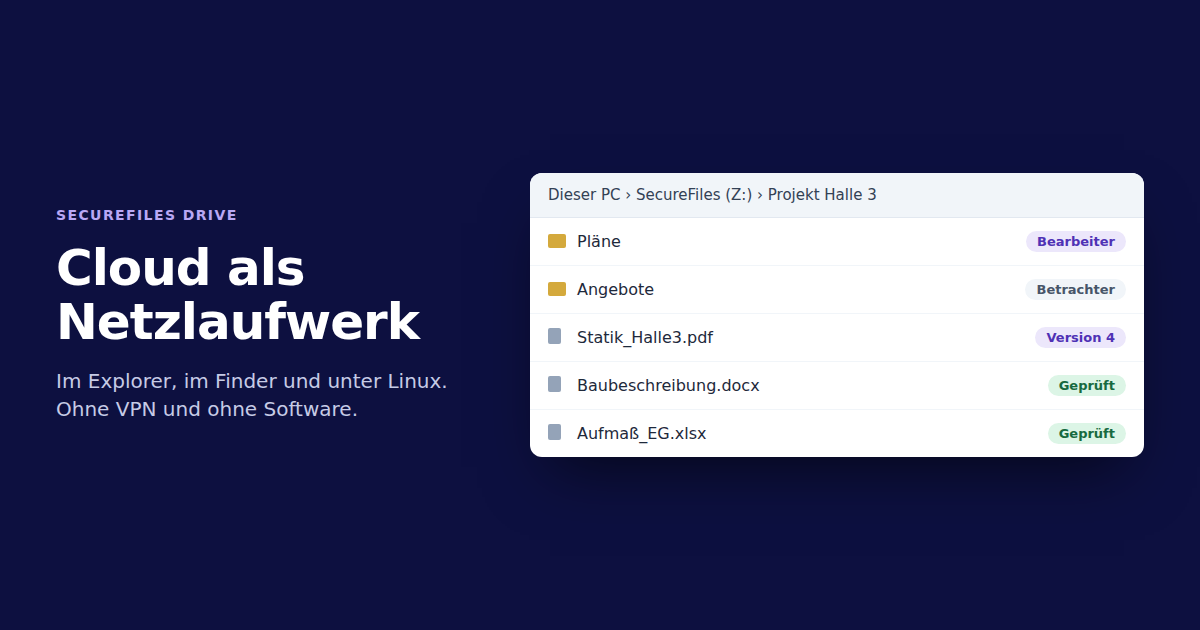
Many teams prefer working in Explorer or Finder. When the files sit in the cloud, that often means downloading, editing and uploading again. A network drive saves that detour.
It takes no VPN and no extra software. Windows, macOS and Linux have everything they need with WebDAV. This guide shows the steps and the errors that come up most often.
What you need
WebDAV is an extension of HTTP that lets programs read and write files on a server. You need three details from your provider:
- the address, starting with
https://, - the user name,
- a password. Where possible, use a separate password per device instead of your main password.
Make sure the connection runs over HTTPS. Unencrypted WebDAV does not belong on the internet.
Windows: always with a drive letter
The quickest way is a command at the command prompt:
net use Z: "https://your-address" /user:name@company.com * /persistent:yes
The asterisk makes Windows ask for the password without showing it. The drive then appears with the letter Z under This PC.
To do it manually, go to This PC in Explorer and choose Map network drive. Pick a letter, enter the address in the Folder field and tick Connect using different credentials.
Avoid Add a network location and the link Connect to a Web site. Both mount without a letter. Edge and Chrome will not open files from such a path.
macOS: Connect to Server
In Finder, choose Go and Connect to Server, enter the address and sign in. The drive appears under Locations.
Linux: davs or rclone
In the file manager, open the address with davs:// instead of https://. For servers and scheduled jobs, rclone works well and speaks WebDAV too.
Typical errors on Windows
Error 0x800700DF, the file size exceeds the limit. The Windows WebClient limits transfers to 50 MB by default. The limit is called FileSizeLimitInBytes and can be raised to about 4 GB in the registry. Then restart the service:
reg add HKLM\SYSTEM\CurrentControlSet\Services\WebClient\Parameters /v FileSizeLimitInBytes /t REG_DWORD /d 4294967295 /f
net stop webclient
net start webclient
The drive is called DavWWWRoot. That is normal. Windows gives this name to the top level of a WebDAV server. Right-click and choose Rename to give it your own name.
Windows will not connect at all. The WebClient service must be running. Set it to Automatic in services.msc so the drive comes back after a restart.
Windows does not ask for the new password. Disconnect the drive with net use Z: /delete and connect it again.
Large folders show errors. Windows also limits the file details per folder, by default roughly 1,000 files. Subfolders help, otherwise the value FileAttributesLimitInBytes.
What businesses should look for
A network drive is convenient. In a business, a few more things count:
- A password per device: if a laptop goes missing, you revoke exactly that access.
- Rights per folder: the drive must not show more than the application itself.
- Versions and recycle bin: overwriting and deleting must be reversible.
- Malware scan: new files should be scanned before others open them.
- Log: who downloaded which file, and when?
- Storage location: where is the data, and is there a data processing agreement?
When a network drive does not fit
WebDAV does not replace every file server. Programs that keep a database on the drive still need a server in your own network. Thousands of small files are also noticeably slower over the internet than on the office network. Without a sync program there is no offline access, but no copies on the devices either.
For documents, plans and project files, on the other hand, it fits well.
How it works with SecureFiles Drive
SecureFiles Drive mounts pools from SecureFiles as a drive. The portal shows the finished command with your address, ready to copy. Each device gets its own app password with validity, pools and read or write access. Roles, folder rights, versions, scans and the log apply as in the portal.
The details are in the documentation under mount pools as a network drive.